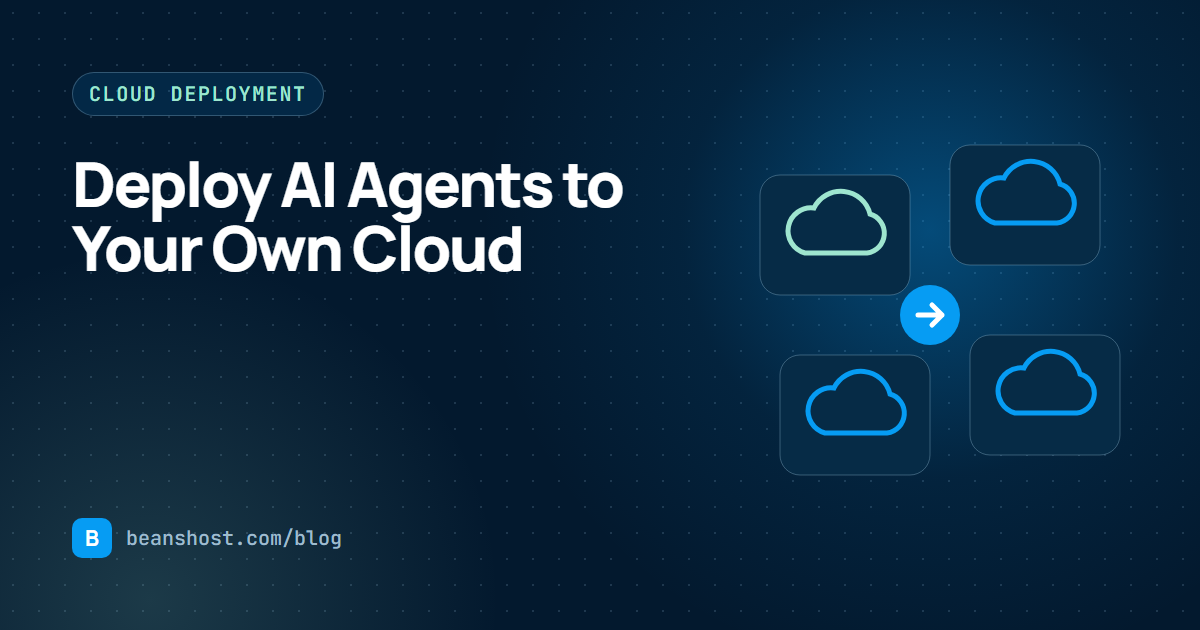
There are two broad ways to put an AI agent into production. You can hand your code to a platform that runs it on shared infrastructure, or you can run it in a cloud account you already own. The second option asks a little more of you up front, but it pays off in cost visibility, network control and the freedom to change providers later. This guide covers the second path in practical detail.
Why deploy into your own account
- Your bill, your discounts. Committed use discounts, startup credits and billing alerts all apply to agent workloads automatically.
- A shorter data path. The agent calls its model provider directly from your account. No third party sits between your users and the model.
- Existing controls keep working. IAM policies, network rules, log retention and compliance tooling you already run cover the agent too.
- Portability. If the agent is described in a provider neutral manifest, moving from one cloud to another is a deployment choice rather than a rewrite.
Step 1: Make the agent deployable
An agent is deployable when it answers HTTP requests and exposes a health path. That is the whole contract. Framework does not matter. A Python service built with FastAPI, a Node.js server or a JavaScript worker on Web standard APIs all qualify.
Add a health route that returns a 200 status quickly and does not call the model. A health check that depends on an external API will fail for reasons that have nothing to do with your release.
from fastapi import FastAPI

app = FastAPI()

@app.get("/health")
def health():
    return {"ok": True}

@app.post("/invoke")
async def invoke(payload: dict):
    reply = await run_agent(payload["message"])
    return {"reply": reply}
Step 2: Describe it in a manifest
Write the runtime, entrypoint, health path, triggers and secret names into a manifest that lives in the repository. With BeansHost this is beanshost.yaml. If your repository does not have one, BeansHost AI can analyze the code, write a starting file and commit it to your branch for review. The developer reference lists every field.
apiVersion: beanshost.io/v1alpha1
kind: Agent
metadata:
  name: support-triage
  displayName: Support triage
spec:
  runtime:
    type: container
    entrypoint: app/main.py
  source:
    type: github
    repository: acme/support-triage
    branch: main
  health:
    path: /health
    timeoutSeconds: 10
  triggers:
    - type: http
      path: /invoke
  secrets:
    - name: OPENAI_API_KEY
      reference: support-triage/openai
Step 3: Pin an exact version
Before you deploy, register the agent at a specific commit and record a checksum of the artifact. Branch names move. Commits do not. When every deployment points at a pinned version, a rollback means something precise and an incident review can start from facts.
Step 4: Connect the cloud account
Each provider has a preferred way to grant access. Use the most limited option available and avoid long lived keys where you can.
| Provider | Service | Recommended connection |
|---|---|---|
| Vercel | Vercel Edge Network | OAuth |
| Render | Render managed services | API key |
| AWS | Amazon ECS Express Mode | Cross-account IAM role with an external ID |
| Azure | Azure Container Apps | Microsoft Entra sign-in and a subscription choice |
On AWS and Azure, container images can be built inside your own account with AWS CodeBuild or Azure ACR Tasks, so the images are built and stored in infrastructure you control. The deploy targets section covers regions and setup for each provider.
Step 5: Add environment variables
Keep secret values out of the manifest and out of the repository. Store each value once per project and environment, encrypt it at rest, and synchronize it to the provider at deploy time. Development and production should never share a model API key, if only so you can tell their usage apart on the provider's bill.
Step 6: Deploy behind a health check
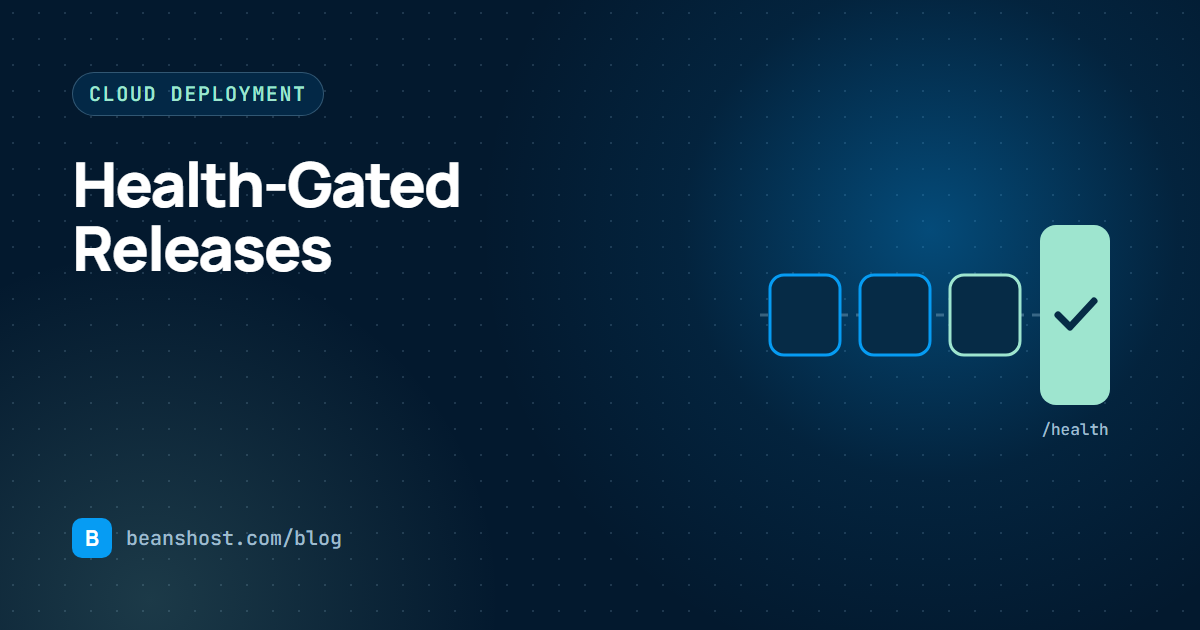
A good deployment pipeline verifies that the commit and checksum still match the registered version, builds the artifact, starts the new release and only marks it active once the health path answers. If the health check fails, the previous release keeps serving. We go deeper on this in health-gated releases for AI agents.
Step 7: Call the agent through a stable endpoint
Your provider gives the agent a URL, but other applications should not depend on it directly. A stable endpoint in front of the agent lets you authenticate callers, apply rate limits, record each run and move the agent to another provider without breaking anyone. In BeansHost, every agent gets its own endpoint with Development and Production variants.
curl -X POST "https://app.beanshost.com/api/v1/runtime/agents/$AGENT_ID/invoke?environment=production" \
  -H "Authorization: Bearer $BEANSHOST_API_KEY" \
  -H "Content-Type: application/json" \
  -d '{"message": "Hello"}'
Common mistakes to avoid
- Deploying from a branch name instead of a pinned commit.
- Health checks that call the model provider and fail on rate limits.
- Copying production secrets into development to save time.
- Letting other services call the provider URL directly, which hides runs and blocks future moves.
- Granting broad cloud permissions when a scoped role would do.
Putting it together
Deploying to your own cloud is a sequence of small, checkable steps: a deployable service, a manifest, a pinned version, a scoped connection, encrypted secrets, a health-gated release and a stable endpoint. BeansHost runs that sequence for Vercel, Render, AWS and Azure from one console, starting with the Builder plan.